更新日志
Parameter Studies, Touch Done Right and the Buildings Library in Your Browser
Sweep a parameter and compare every run, then drag a slider and watch the result replay in 3D. Touch now follows Apple's latest guidelines, and the Buildings library simulates right on your device.
Ask "what if?" and see the answer: run a parameter over a range in one go, or drag a slider and watch the model respond in 3D. Touch screens now feel at home, and the Buildings library runs right in your browser.
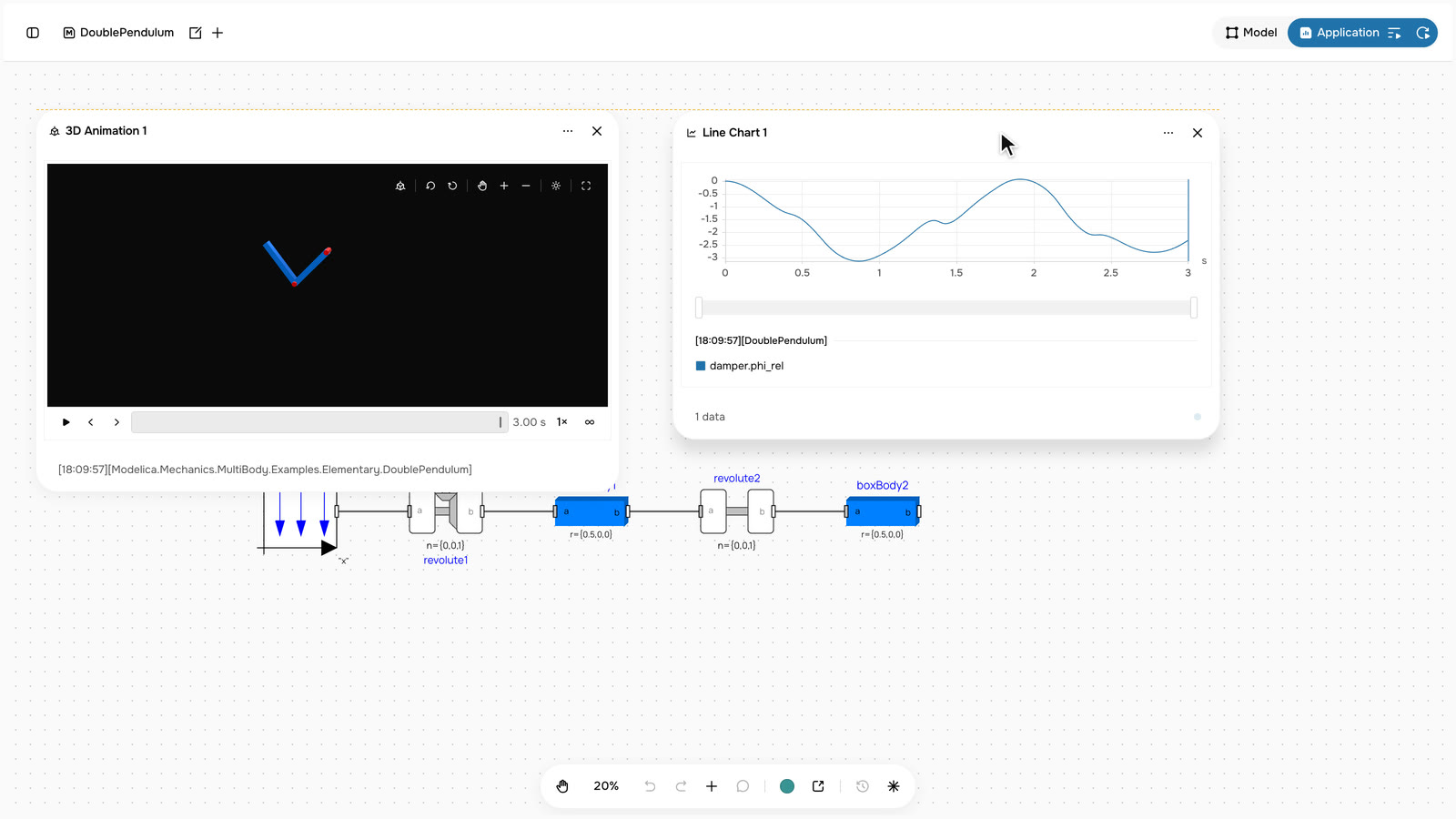
A double pendulum's damping, swept from 0 to 8 in five runs, two of them replayed in 3D, then tuned live with a slider.
Parameter studies, right on the board
- Pick Range on a parameter. A Parameter study widget shows its low and high values and how many runs to make. Press Run and every run goes in your browser.
- See every run at once. The line chart colours each run by its parameter value, with a toggle for each value.
- Replay any run in 3D. Click a run in Study results and the 3D Animation widget plays it once, while the chart highlights its line.
- Or drag a slider. Pick Slider and drag. When the slider rests, that value runs and replays in 3D, keeping your camera view, with its curve dashed in the chart beside the runs you compared.
- Keep what you like. Save as a run turns the slider's value into a run of its own.
Built for iPad and touch, to Apple's latest guidelines
Touch in ODE+ now follows Apple's Human Interface Guidelines, including the touch guidance Apple added on 28 October for gestures, pointing devices and touch on Mac.
Drawing a connection by finger: the lens magnifies the port you start from, every port you can connect to lights up, and the end snaps into place.
- Apple-size targets. Every Dock and toolbar control, port and connection line is a 44 × 44 pt touch target. A touch laptop gets a slightly smaller band.
- A lens under your finger. Small ports, menu items and header controls are magnified as you touch them, so you can see what you're about to hit.
- Draw a connection by finger. Drag out from a port and the lens shows the connector your line will snap to. The end snaps from 56 px away, so your finger never covers it. One tap on a line opens its properties.
- No hover-only information. As in Apple's own apps, touch shows no tooltips, so everything you need is on screen.
The Buildings library, simulated right on your device
Buildings 14.0.0 now simulates locally in your browser, on a laptop or an iPad, with nothing to install and no server queue. In-browser simulation now runs Modelica models that call external C functions: the library's C code is compiled to WebAssembly and runs next to your model.
- 91% of Buildings examples run in the browser. That's 556 of 614, up from 69% with Buildings 13. ThermofluidStream 1.4.1 runs 211 of 216 (98%).
- Weather data and file output just work. Models like the TMY3 weather-file reader get their data through external C, and CSV results or plots a model writes are downloaded for you.
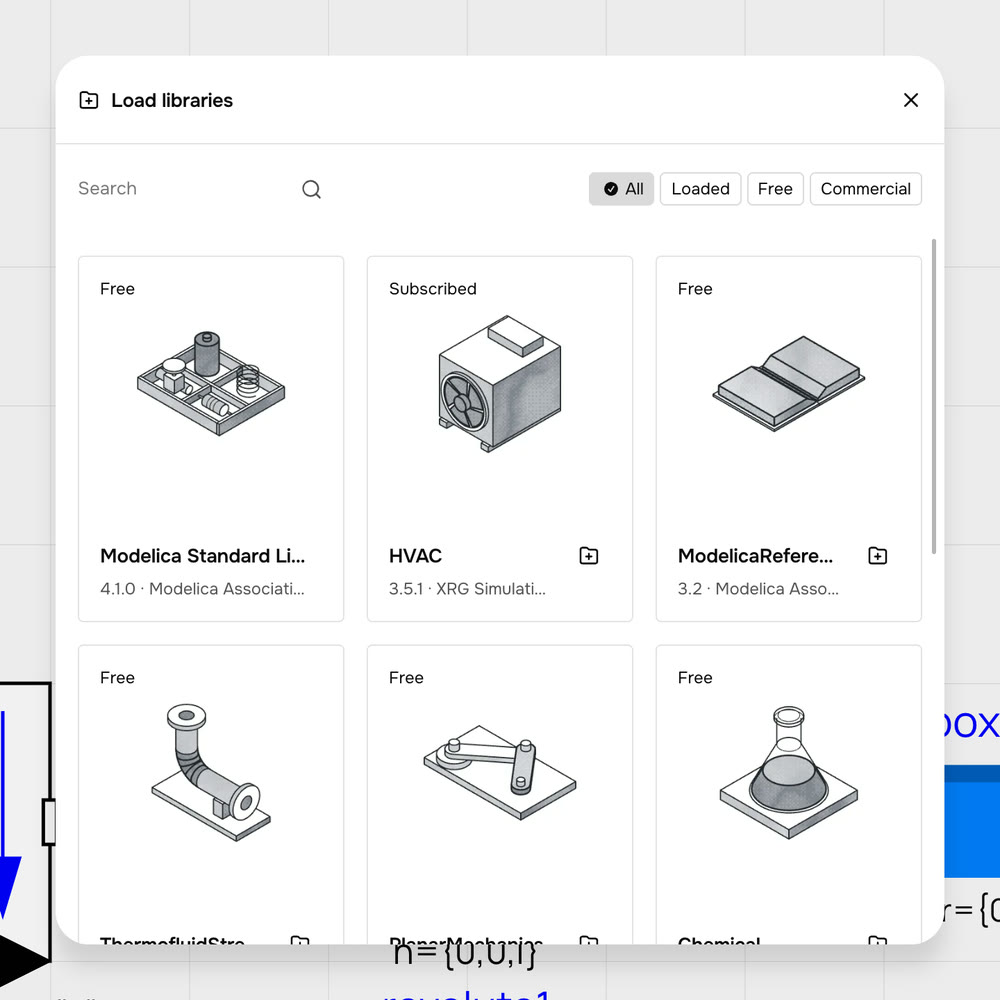
- Libraries as cards. Load and unload each library from its own card, with a detail page and the version that's actually installed.
Not in the browser yet: models coupled to EnergyPlus, Python, FFD or BCVTB. They still run on the server.
Ask AI to fix a failed simulation
- One click from the failure. When a run fails, ask the AI to fix it straight from its run card.
- See what actually went wrong. A run that fails in the browser now shows the real assertion and the phase it failed in.
Line up the Model and Application canvases
- A grid on both. The Model and Application canvases share one grid pattern, and components snap to it.
- Alignment guides for widgets. Drag or resize a widget on the Application board and a guide appears when its edge lines up with another's, in the same colour as on the Model canvas.
Also new
- Connection style. Set a connection's colour and thickness in the Inspector.
- Focus while you edit. Click a block or a line in Model and Start and the AI chat fold away until you're done in the Inspector.
- Send feedback opens as a popover beside the chat composer.
- Optimization app. Runs, chat turns and cloud loads reconnect and clean up more reliably, and an FMU whose details fail to load now says so instead of showing a placeholder model.